
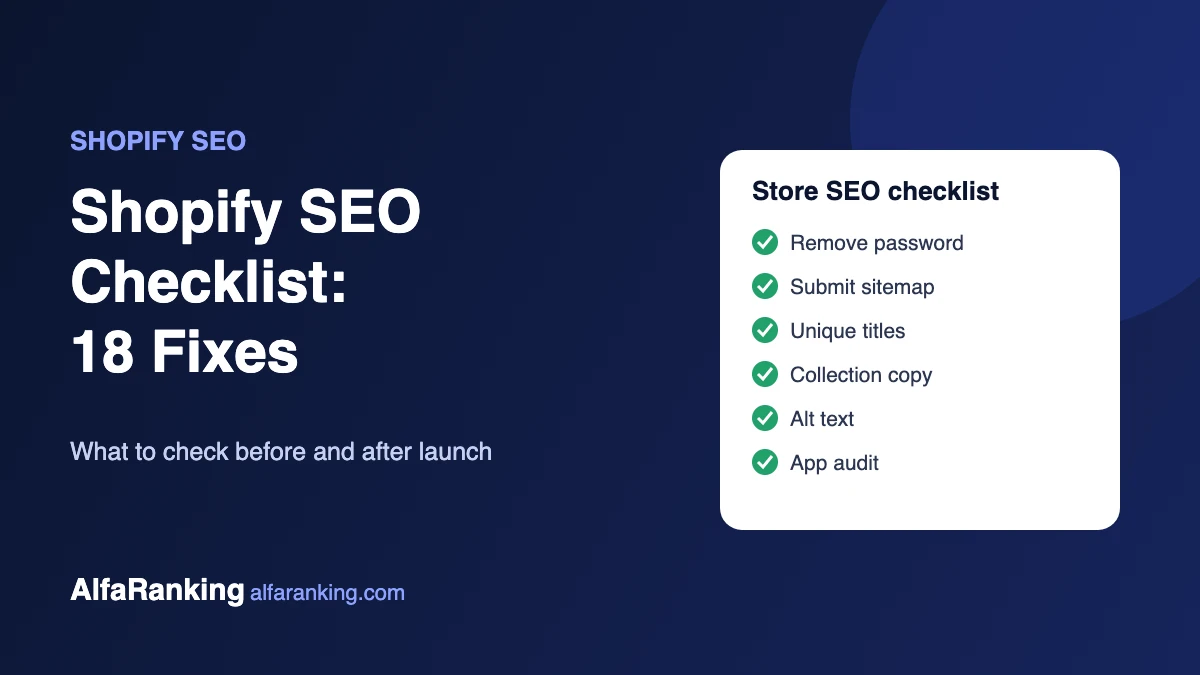
Shopify handles a lot of technical SEO for you. It creates a sitemap, adds canonical tags and serves images from a fast CDN. But it also has quirks that hold many stores back, from duplicate product URLs to thin collection pages and slow, app-heavy themes.
This checklist covers what to check, in a sensible order, and what you can fix yourself in the Shopify admin.
Before launch
1. Remove the store password
A password-protected store can’t be crawled or indexed. When you’re ready to launch, turn off password protection in Online Store > Preferences.
2. Connect Google Search Console and submit your sitemap
Shopify generates a sitemap automatically at /sitemap.xml and keeps it updated as you add products. Verify your domain in Google Search Console and submit that URL so you can see what Google indexes and spot errors early.
3. Set your primary domain
Make sure your custom domain is set as primary, so the myshopify.com address and any other domains redirect to it. One address means ranking signals aren’t split.
Product and collection pages
4. Write unique titles and meta descriptions
On every product, collection and page, scroll to Search engine listing and edit it. By default Shopify fills these from the product name and description, which often produces cut-off or repetitive snippets. Put the main keyword near the start of the title and write the description for a person deciding whether to click.
5. Keep URL handles short and clean
/products/black-leather-wallet is better than /products/copy-of-new-wallet-final-2. If you change the handle of a live page, tick Create a URL redirect so old links and rankings carry over.
6. Write real collection descriptions
Collection pages often rank for broad category searches, yet many stores leave them as a grid of products with no text. Add a short, useful intro that explains the range and who it’s for. A few FAQs below the products can help too.
7. Rewrite supplier descriptions
If you copy the manufacturer’s text, the same description exists on dozens of other stores. Write your own, covering what buyers actually ask about: size, materials, fit, care and delivery.
8. Add image alt text
Describe each product image plainly, for example “black leather bifold wallet, open”. It helps image search and makes the store accessible to people using screen readers.
Technical checks
9. Understand Shopify’s duplicate URLs
Shopify can show the same product at /products/name and at /collections/category/products/name. Canonical tags usually point to the /products/ version, but many themes still link internally to the longer one. We explain why it matters and how to fix it in Shopify duplicate URLs: what they are and how to fix them.
10. Be careful with robots.txt
Shopify lets you edit robots.txt through a robots.txt.liquid theme template. The default file already blocks the cart, checkout and many filter and sort URLs, so only change it if you know exactly which URLs you want to block. One wrong line can hide a whole section of the store.
11. Check structured data
Most modern themes output Product markup with price and availability. Test a product page in Google’s Rich Results Test. If something is missing, check your theme and review app settings before installing another schema app, because duplicate markup causes more problems than it solves.
12. Handle sold-out and deleted products
If a product is coming back, keep the page live and show it as sold out. If it’s gone for good, redirect its URL to the closest product or collection instead of leaving a 404.
Speed
13. Audit your apps
Each app can add scripts to every page, and some leave code in the theme after you uninstall them. Remove apps you no longer use and check the theme for leftover snippets.
14. Resize images before uploading
Shopify’s CDN serves images in modern formats, but a huge banner is still slow on mobile. Upload hero images close to the size they actually display at.
15. Test key templates on mobile
Run your home, collection and product pages through PageSpeed Insights. Focus on Largest Contentful Paint, which on most stores is the hero or main product image.
Content and links
16. Use the built-in blog
Buying guides, comparisons and how-to articles answer questions product pages can’t, and they give you pages to link from to your collections.
17. Link internally
Link from blog posts to relevant collections and products, and between related collections, using descriptive anchor text rather than “click here”.
18. Build links safely
New stores often struggle to rank for competitive terms without links from relevant sites. Choose sites with real traffic in your niche, not just a high score (see what DR actually tells you), and make sure paid placements are marked rel=”sponsored”, as Google’s spam policies require.
Quick reference
| Task | Where | Priority |
|---|---|---|
| Remove password | Online Store > Preferences | At launch |
| Submit sitemap | Google Search Console | At launch |
| Titles and meta descriptions | Search engine listing on each page | High |
| Collection descriptions | Products > Collections | High |
| Image alt text | Product media | Medium |
| App audit | Apps | Medium |
| Redirects for removed products | URL redirects | As needed |
Want this done for your store?
Our Shopify SEO service covers these checks, plus collection content and safe link building. Send us your store URL and we’ll tell you what to fix first, free.